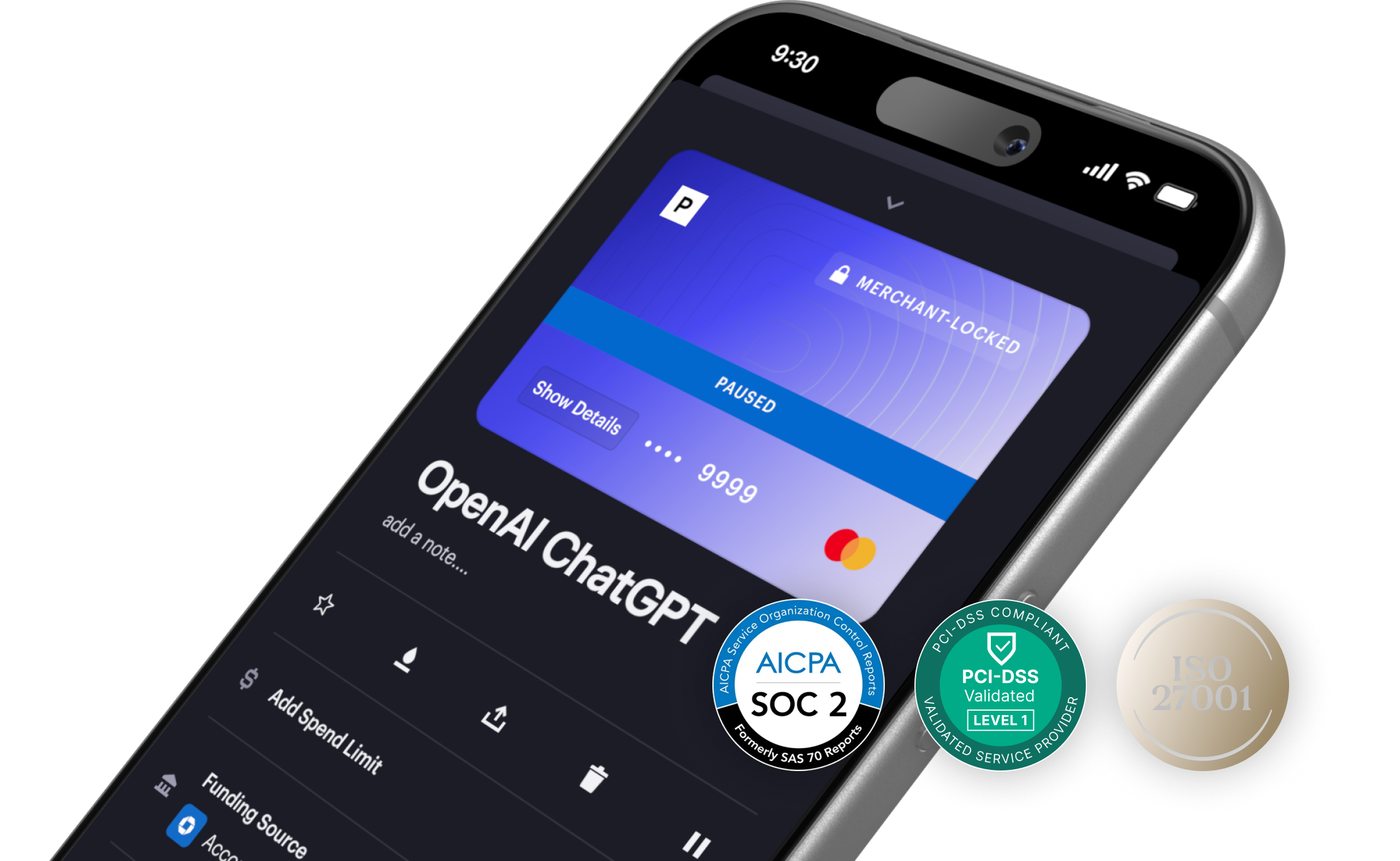
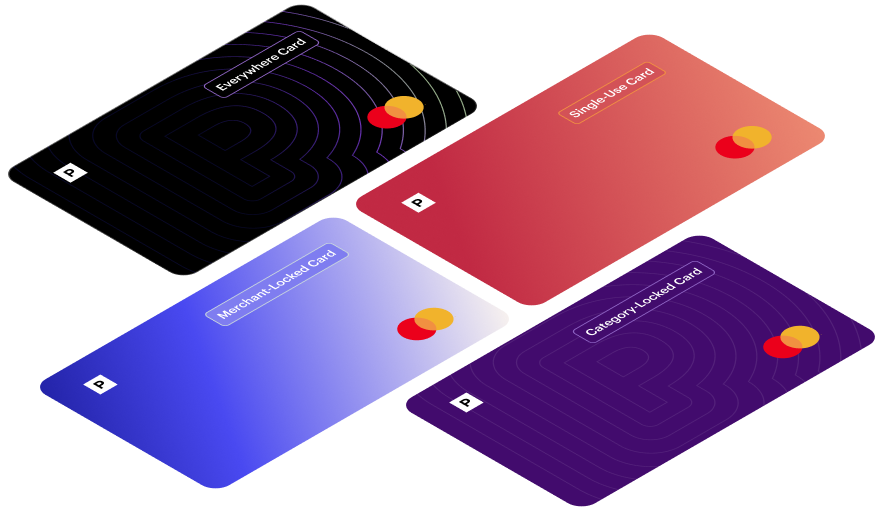
Merchant-Locked Cards
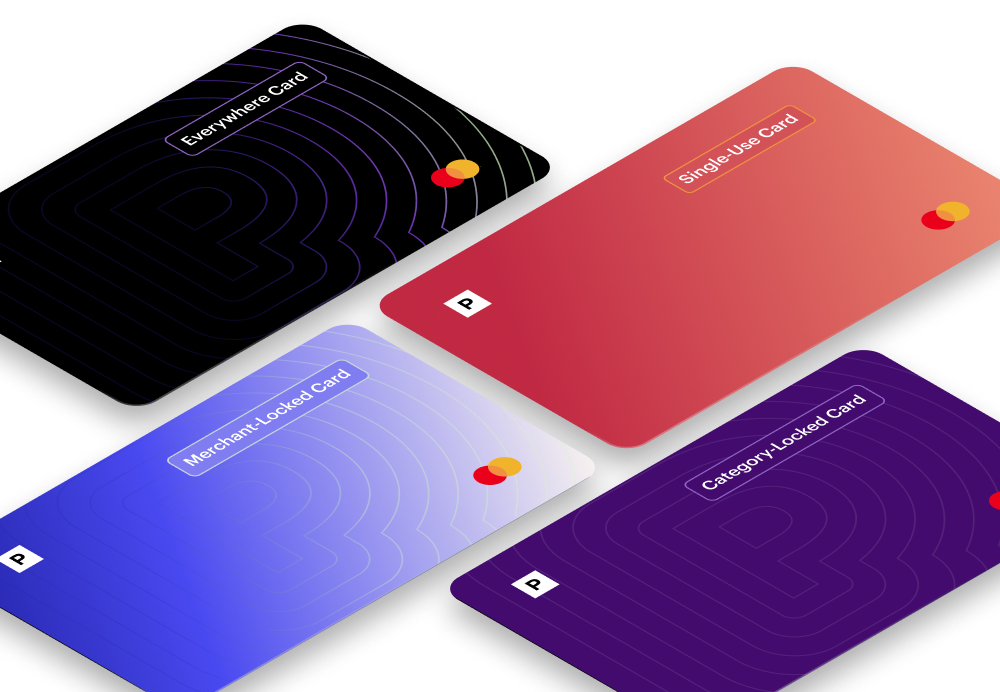
Merchant Cards lock to the first merchant you make a transaction at.
Single-Use Cards
Single-Use Cards close after the first transaction.
Category Cards
Category-Locked Cards come locked to a predefined merchant category.
Everywhere Cards
Everywhere Cards can be used in-person with mobile wallet compatibility, and don’t lock to a single merchant.
How To Cancel Zoom Subscription Effectively—Process Explained

Zoom is a platform that facilitates team communication through chat, calls, meetings, and whiteboards. Although liked and used by many, Zoom hasn't met the expectations of all users. Most complaints revolve around customer support—the difficulty of reaching a live agent and particular agents’ inability to resolve reported issues. Other users may have a different reason for cancellation—such as a desire to try out an alternative like Microsoft Teams or Google Meet.
To understand how to cancel your Zoom subscription with minimal friction, consult this guide. Besides useful information about Zoom's cancellation process, you'll also learn how to prevent unwelcome charges from other companies.
Note that the information in this article was sourced in November 2023. Visit the official Zoom website for updates.
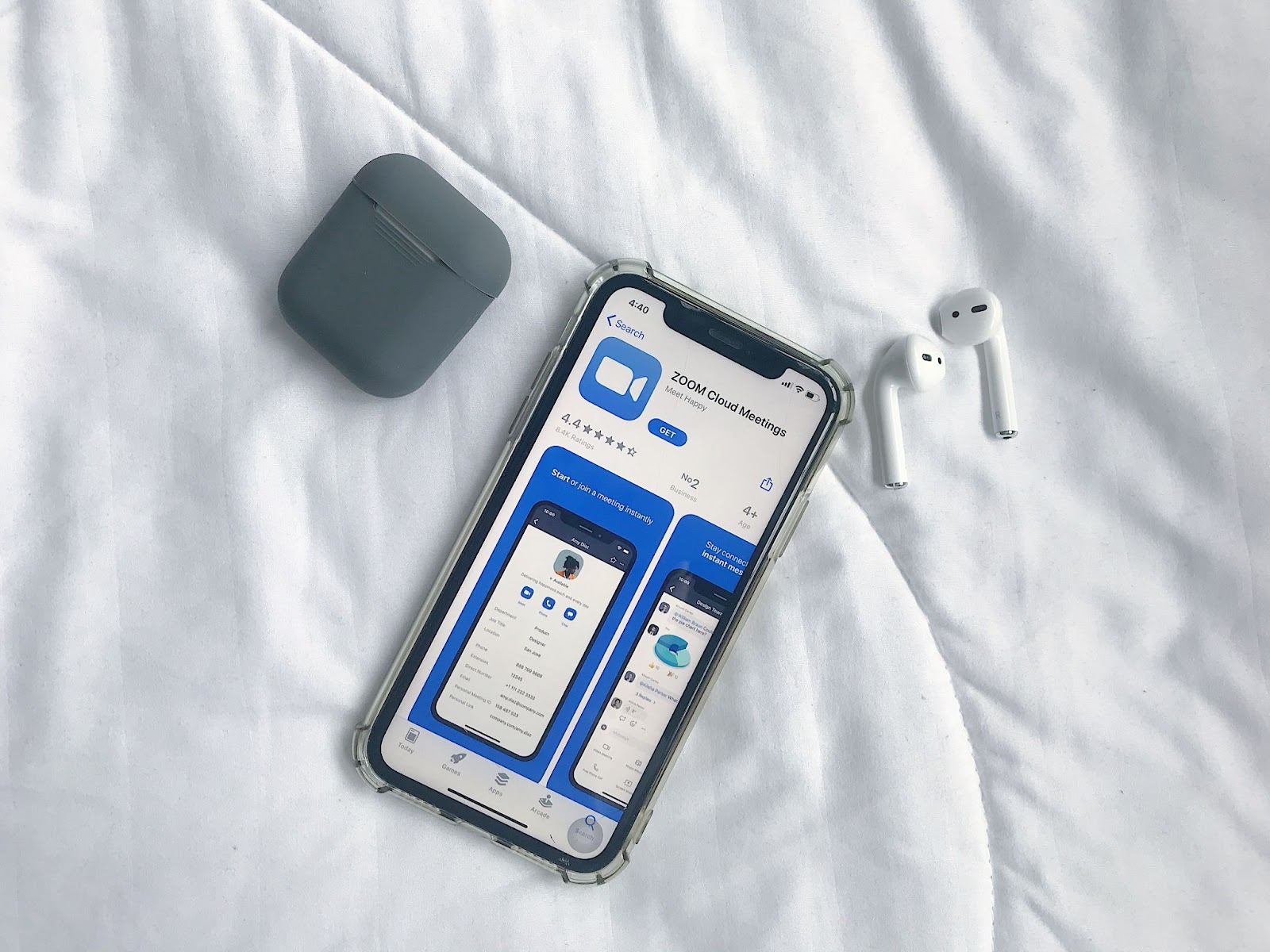
How To Cancel Zoom—A Step-by-Step Tutorial
To cancel your Zoom subscription, you should:
- Log into the Zoom web portal.
- Click on your profile icon to access the navigation menu.
- Select Plans and Billing, then Plan Management.
- Click on the Manage option on the right of the plan you want to cancel.
- Within the dialog box, click on Cancel Plan, then Confirm Your Cancellation.
You should receive an email confirming your cancellation was successful.
If you’ve purchased Zoom via a direct sales quote, you’ll have to email your dedicated Account Executive or renewals@zoom.us to cancel. In case you’ve bought Zoom via the Google Play Store or the App Store, you must discontinue your Zoom subscription via those platforms.
Can You Cancel Zoom After One Month?
Yes—you can cancel Zoom anytime. After canceling, your current plan will be active until the end of the ongoing billing cycle and won’t renew. However, to avoid paying for the next month’s or year’s subscription, it’s advisable to cancel at least a few days before the renewal date, which is displayed alongside the plan in the Plan Management section.

What To Do In Case of Cancellation Issues With Zoom
If you run into problems while terminating your Zoom subscription, you may be able to get help using one of the channels in the table below: